> For the complete documentation index, see [llms.txt](https://help.margex.com/help-center/llms.txt). Markdown versions of documentation pages are available by appending `.md` to page URLs; this page is available as [Markdown](https://help.margex.com/help-center/social-trading/affiliates.md).
# Affiliates
## Social Trading main tab
### Feed
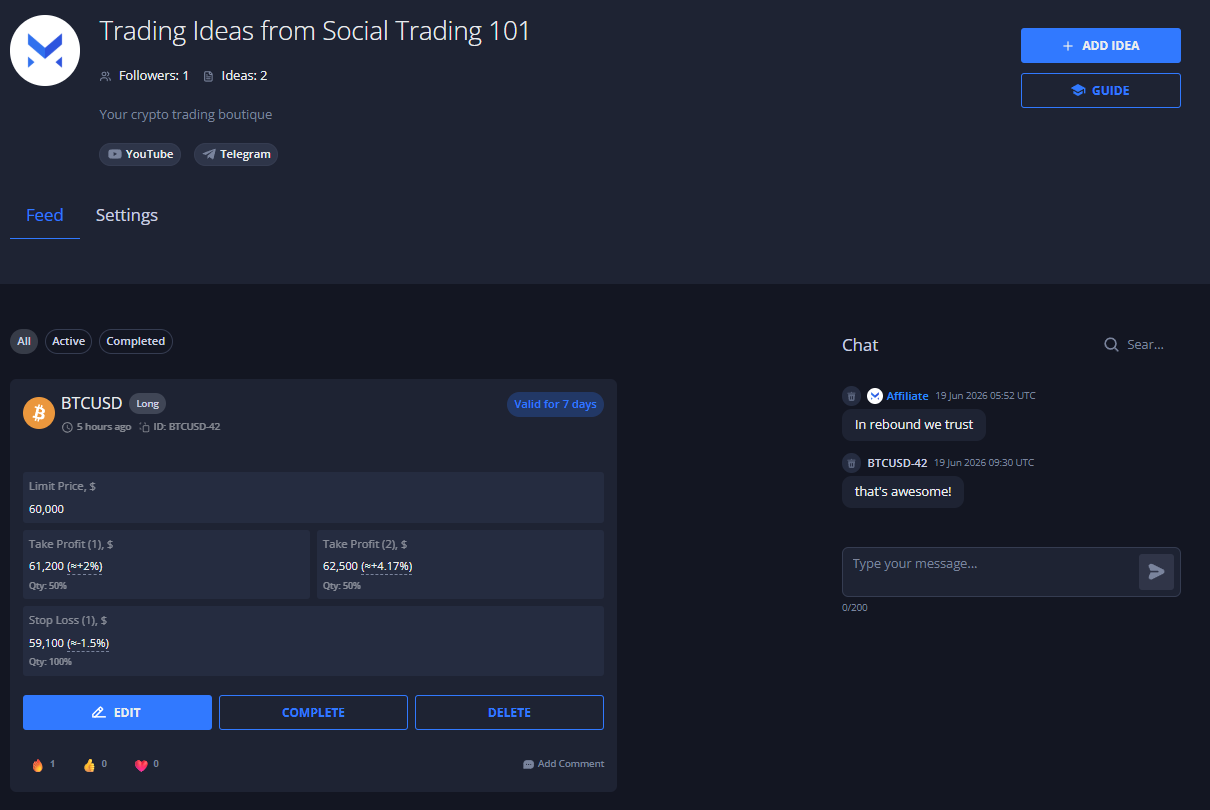
This is the main place where all your **Trading Ideas** are posted for you to manage and your referrals to use. All your currently active and completed Trading Ideas will be reflected in the Feed.
From here you can also sort your feed by 'All', 'Active', or 'Completed' Trading Ideas:
### Settings
In this tab you will be able to setup and manage your profile information, including: Profile Name, Description, Profile Picture and Social Media links.
### Chat
This is the main place where you can discuss your trading strategy or Ideas with your community. In the Chat you can post messages to your community along with comments regarding any existing or previous Ideas.
## How to setup and manage your Social Trading account?
{% stepper %}
{% step %}
### Trading Ideas tab
To start your Social Trading account management, first, proceed to the Social Trading tab.
To do so, hover over the 'Trade' tab on the trading interface and choose the 'Trading Ideas' options:
{% endstep %}
{% step %}
### Setting up the account
Now we can start setting up the account.
Switch to the 'Settings' tab:
{% endstep %}
{% step %}
### Fill in the data
In the opened tab you need to fill in a simple informational form:
1. Account name
2. Profile picture
3. Profile description
4. Social media links
{% endstep %}
{% endstepper %}
After the settings are done, simply click the 'Save' button and you are all set.
## Creating Trading Ideas
Adding a **Trading Idea** is similar to setting up a conditional order on Margex.
{% stepper %}
{% step %}
### Open the idea creation window
Go to the **Trading Ideas** tab and click **Add Idea** in the top-right corner.
{% endstep %}
{% step %}
### Choose the market setup
Select the trading pair for the idea.
Then choose the trade direction for your setup.
{% endstep %}
{% step %}
### Entry point
Enter the Limit Price. Do not here, that this parameter functions essentially as a conditional Limit order Price level and the same rules as for the usual Limit order are applied.
**Important:** the **Limit Price** must be set **at least ±2%** from the **current market price**.
{% endstep %}
{% step %}
### Validity Period
For the next step, choose your Validity Period. It will define the amount of time for which the idea will stay Active.
{% endstep %}
{% step %}
### Exit points
Don't forget to also include Take Profit and Stop Loss levels for your Idea.
For those, you'd need to define the Price level or Unrealized PnL as the percentage of price change for the chosen asset as the trigger condition, and the position percantage, meaning which part of the position (in %) will be closed once the orders conditions are met.
**Note**: *as those are TP and SL orders, the same rules for their Price Level placement are applied as to usual conditional orders. In other words:*
* *For a **LONG** position, a **TP** order must be set **HIGHER** than the current market price and **SL** must be set **LOWER** than the current market price.*
* *For **SHORT** position, a **TP** order must be set **LOWER** than the current market price and **SL** must be set **HIGHER** than the current market price.*
{% endstep %}
{% step %}
### Commentaries and images
As a final option, you can add your personal comments to your idea if you want to describe any personal thoughts on it. For example, it can include specific technical analysis data to be met or any other important pieces of information you feel has to be included.
Also, you can attach pictures along with the Idea. Such files will be visilbe on the Idea card in yours and your Followers' Feed.
{% endstep %}
{% endstepper %}
## Chat
In the Chat you can post messages to your community along with comments regarding any existing or previous Ideas. This is a perfect place to discuss your strategy with your community, as well as to listen to a general sentiment on the market conditions or pick up valuable feedback on your Ideas.
As an Affiliate you can type messages in Chat at any time, as well as post comments regarding Ideas.
In order to post a message into the chat, simply compile what you wish to share with your community and press on the 'Send' button:
{% hint style="info" %}
All Chat messages have a maximum limit of 200 characters.
{% endhint %}
If you want to add comments for a specific idea, you can find the 'Add Comment' button in the bottom left corner of the Idea card. This way, it will automatically attach the ID of the Idea to your message so that everyone can easily understand what exactly are you referring to:
Additionally, as an Affiliate, you are able to delete any message from the Chat. In order to do so, simply hover your mouse cursor over the message you want to delete and press on the corresponding 'Bin' button, as referred on the screenshot: